

We are a digital agency helping businesses develop immersive, engaging, and user-focused web, app, and software solutions.
2310 Mira Vista Ave
Montrose, CA 91020

2500+ reviews based on client feedback
What's Included?
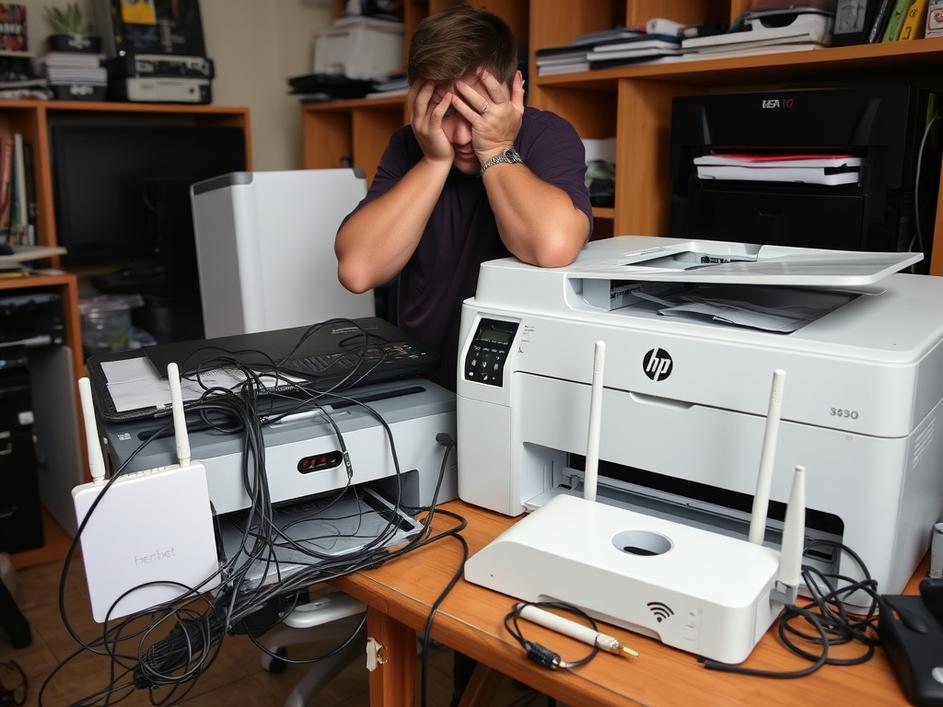
ToggleWe’ve all been there. You’re ready to print an important document, a boarding pass, or maybe just a fun coloring page for the kids, only to be stopped dead in your tracks. Your printer, once a reliable workhorse, is now stubbornly offline, demanding a WiFi password you simply can’t recall. It’s a common scenario, especially with the ever-growing number of passwords we need to manage in our digital lives. The HP Deskjet 3630, like many modern printers, relies on a wireless connection for its convenience, but this convenience hinges on remembering that crucial password. So, what do you do when your printer suddenly becomes a digital paperweight?
Before diving into solutions, it’s helpful to understand why you might have forgotten your printer’s WiFi password in the first place. Maybe you set it up a long time ago and haven’t needed to re-enter it since. Perhaps you recently changed your home WiFi password and haven’t updated the printer’s settings to reflect the new credentials. Or, maybe someone else initially set up the printer, and you never knew the password to begin with. Regardless of the reason, the end result is the same: your printer is disconnected, and you need to find a way to reconnect it.
Fortunately, resetting your printer’s WiFi password isn’t usually as daunting as it seems. The process typically involves a few key steps, which might vary slightly depending on your specific printer model, but the general principles remain the same.
First, you’ll likely need to perform a factory reset on your printer. This will erase all of its stored settings, including the forgotten WiFi password. Check your printer’s manual or HP’s support website for specific instructions on how to perform a factory reset. This often involves pressing and holding a combination of buttons on the printer itself.
Once the printer is reset to its factory defaults, you’ll need to reconnect it to your WiFi network. This usually involves using the HP Smart app on your smartphone or computer. The app will guide you through the process of selecting your WiFi network and entering the new password. Make sure your phone or computer is connected to the same WiFi network you want your printer to use.
If you don’t want to use the app, you can often connect to the printer directly via a USB cable. Once connected, you can access the printer’s settings through your computer’s web browser by typing in the printer’s IP address. From there, you can manually configure the WiFi settings.
Now that you’ve successfully reset your printer’s WiFi password, it’s a good idea to take steps to prevent this from happening again. Here are a few tips:
* **Write it Down:** Keep a record of your printer’s WiFi password in a safe and easily accessible place. This could be a password manager, a note on your computer, or even a physical notebook.
* **Use a Simple Password:** While strong passwords are generally recommended for online security, a simpler password might be easier to remember for your printer. Just make sure it’s still reasonably secure.
* **Update Your Password Manager:** If you use a password manager, be sure to update it with your printer’s new WiFi password.
* **Consider a Wired Connection:** If possible, consider connecting your printer to your network via an Ethernet cable. This eliminates the need for a WiFi password altogether.
* **Regularly Check Your Settings:** Make it a habit to periodically check your printer’s WiFi settings to ensure they’re still correct. This is especially important if you change your home WiFi password.
Sometimes, even after resetting the password, you might still encounter problems connecting your printer to your WiFi network. Here are a few common issues and their potential solutions:
* **Incorrect Password:** Double-check that you’re entering the correct WiFi password. Even a small typo can prevent the connection from working.
* **Weak WiFi Signal:** Ensure that your printer is within range of your WiFi router and that the signal strength is strong enough.
* **Firewall Issues:** Your firewall might be blocking the printer’s connection. Check your firewall settings and make sure that the printer is allowed to communicate with your network.
* **Driver Problems:** Outdated or corrupted printer drivers can also cause connection issues. Update your printer drivers to the latest version.
* **IP Address Conflicts:** Sometimes, two devices on your network might be assigned the same IP address, leading to conflicts. Try assigning your printer a static IP address to avoid this issue.
If you’ve tried all of the above steps and are still having trouble, don’t hesitate to reach out to HP’s support resources. Their website offers a wealth of information, including troubleshooting guides, FAQs, and driver downloads. You can also contact HP’s customer support team directly for personalized assistance. Remember to have your printer’s model number and serial number handy when contacting support, as this will help them diagnose the issue more quickly.
While it might seem like a minor inconvenience, securing your printer is an important aspect of overall network security. A compromised printer can be used to access sensitive information on your network, so it’s crucial to take steps to protect it. This includes using a strong WiFi password, keeping your printer’s firmware up to date, and being mindful of who has access to your printer.
Losing your printer’s WiFi password can be a frustrating experience, but it’s a problem that can usually be resolved with a little patience and troubleshooting. By following the steps outlined in this guide, you should be able to reset your password, reconnect your printer to your WiFi network, and reclaim your printing power. And by taking steps to prevent future password problems, you can ensure that your printer remains a reliable and convenient tool for years to come.


Comments are closed