

We are a digital agency helping businesses develop immersive, engaging, and user-focused web, app, and software solutions.
2310 Mira Vista Ave
Montrose, CA 91020

2500+ reviews based on client feedback
What's Included?
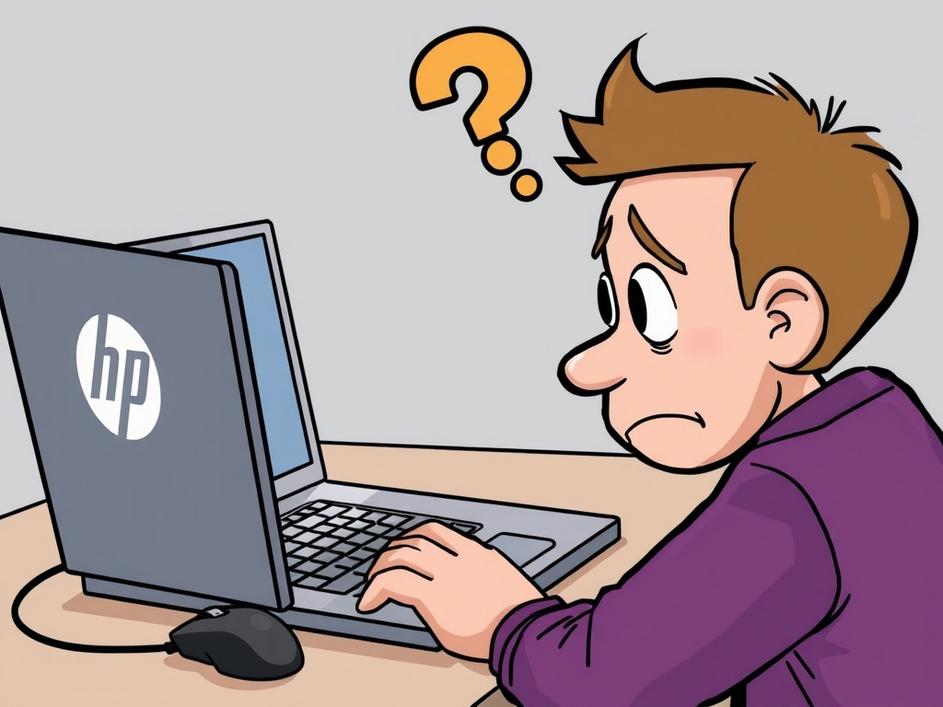
ToggleSo, your HP laptop’s touchpad has decided to take an unscheduled vacation? You’re not alone. A non-responsive touchpad is a common frustration for many laptop users, and HP laptops are not immune. Before you resign yourself to a life of solely using a USB mouse, let’s explore some troubleshooting steps to get that touchpad back in action.
Before diving into more complex solutions, start with the basics. Is the touchpad actually enabled? Many laptops have a dedicated key (often an F-key) or a combination of keys that toggles the touchpad on and off. Look for a touchpad icon on your keyboard, usually on one of the F1-F12 keys. Pressing that key, sometimes in combination with the Fn key, might just be the simple fix you need. Also, make sure your fingers are clean and dry. Sometimes, a little bit of grime or moisture can interfere with the touchpad’s sensitivity.
If the simple checks don’t work, the problem might be with your touchpad drivers. Drivers are the software that allows your operating system to communicate with the hardware. Outdated, corrupted, or incompatible drivers can cause all sorts of problems, including a malfunctioning touchpad. To check and update your drivers, open the Device Manager (search for “Device Manager” in the Windows search bar). Expand the “Mice and other pointing devices” category. You should see your touchpad listed there (it might be labeled something like “Synaptics Touchpad” or “Elan Input Device”). Right-click on the touchpad device and select “Update driver.” Choose the option to search automatically for updated drivers. If that doesn’t work, you can try uninstalling the driver and then restarting your computer. Windows will usually automatically reinstall the driver upon restart. If not, you might need to download the latest driver from the HP support website, using your laptop’s model number to find the correct download.
In some cases, the problem might lie deeper, within the BIOS (Basic Input/Output System) settings. The BIOS is the firmware that controls the basic functions of your computer. Some BIOS settings can affect the touchpad. To access the BIOS, you usually need to press a specific key (like Delete, F2, F10, or Esc) while the computer is booting up. The exact key varies depending on the HP model, so consult your laptop’s manual or the HP support website. Once in the BIOS, look for settings related to the internal pointing device or touchpad. Make sure it’s enabled. Also, some BIOS versions might have an option to switch between basic and advanced touchpad modes. Experiment with these settings to see if they resolve the issue. Be careful when making changes in the BIOS, as incorrect settings can cause other problems.
If you’ve exhausted all the software-related troubleshooting steps and your touchpad is still stubbornly refusing to work, the problem might be hardware-related. There could be a loose connection inside the laptop, or the touchpad itself might be faulty. Opening up your laptop and poking around inside is generally not recommended unless you have experience with computer hardware repair. You could accidentally damage something else. At this point, it’s best to contact HP support or take your laptop to a qualified repair technician. They can diagnose the problem and determine if the touchpad needs to be replaced. They also can check the ribbon cable that connects the touchpad to the motherboard.
While you’re troubleshooting the touchpad issue, a USB mouse is your best friend. It will allow you to navigate your computer and continue working while you figure out what’s wrong with the touchpad. Also, some laptops have a trackpoint (the little nub in the middle of the keyboard) which can also be used as a temporary workaround.
To avoid touchpad problems in the future, keep your laptop clean and free of dust and debris. Avoid eating or drinking near your laptop, as spills can damage the touchpad and other components. Regularly update your drivers and operating system. And, if you’re not comfortable working on your laptop yourself, don’t hesitate to seek professional help.
A non-working touchpad can be incredibly frustrating, but it’s often a problem that can be fixed. By systematically working through the troubleshooting steps outlined above, you should be able to get your touchpad back in action. And if all else fails, remember that there are always external mice and professional repair services to fall back on. Good luck!

Comments are closed