

We are a digital agency helping businesses develop immersive, engaging, and user-focused web, app, and software solutions.
2310 Mira Vista Ave
Montrose, CA 91020

2500+ reviews based on client feedback
What's Included?
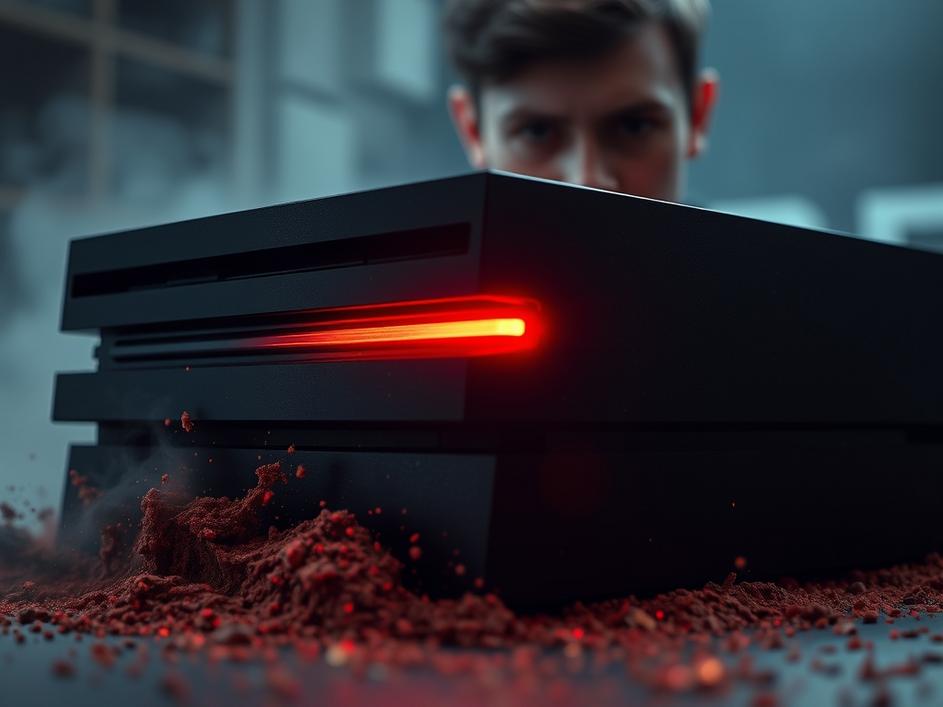
ToggleSo, you’re settled in for a gaming marathon, controller in hand, and ready to conquer virtual worlds. But then, disaster strikes: your PS4 starts flashing a menacing red light. Panic sets in. Is your beloved console on its last legs? Don’t reach for the panic button just yet. That pulsing red light, often referred to as the “Red Light of Death,” isn’t always a death sentence. It’s usually a sign that something is amiss, and thankfully, many of these issues are fixable at home.
One of the most common reasons for the red light appearance is overheating. Just like a car engine, your PS4 generates a lot of heat when it’s working hard. If the cooling system can’t keep up, the console will overheat, triggering the red light as a warning. Think of it as your PS4’s way of saying, “I’m getting a little too toasty in here!” Make sure your PS4 has enough ventilation around it, and try blowing some compressed air into the vents to dislodge dust. Dust buildup is a major cause of overheating, and giving your console a good cleaning can often solve the problem.
Another culprit could be the power supply. The PS4 needs a stable power source to function correctly. If the power supply is failing or not providing enough power, it can cause the red light to appear. This could be due to a faulty power cable, a surge in electricity, or a problem with the power supply unit itself. First, try a different power outlet and ensure the power cable is securely connected. If that doesn’t work, you might need to consider replacing the power supply unit. This can be a bit tricky, so if you’re not comfortable working with electronics, it’s best to consult a professional.
In some cases, the red light might indicate a more serious hardware failure. This could be a problem with the hard drive, the motherboard, or other internal components. If you’ve tried the troubleshooting steps mentioned above and the red light persists, it’s possible that your PS4 has a more significant issue that requires professional repair. Opening the console yourself might void any warranty you have, so proceeding with caution is important.
Before you throw in the towel, here’s a step-by-step guide to try and fix the red light issue:
* **Check the Ventilation:** Make sure your PS4 has plenty of space around it for airflow. Don’t place it in an enclosed cabinet or on a carpet.
* **Clean the Vents:** Use a can of compressed air to remove dust from the vents on the back and sides of the console.
* **Power Cycle:** Completely power down the PS4, unplug it from the wall, and wait at least 30 seconds before plugging it back in and turning it on.
* **Check the Power Cable:** Make sure the power cable is securely connected to both the PS4 and the wall outlet. Try a different power outlet to rule out any issues with the current one.
* **Rebuild Database (Safe Mode):** Boot your PS4 into Safe Mode (press and hold the power button until you hear two beeps) and select “Rebuild Database.” This can help fix corrupted data that might be causing the problem. Be aware that this can take a while, and you should back up your data if possible beforehand.
* **Initialize PS4 (Safe Mode):** As a last resort (and after backing up your data!), you can try initializing your PS4 in Safe Mode. This will erase all data on the console and restore it to its factory settings. Only do this if you’ve exhausted all other options, as you’ll need to reinstall all your games and applications.
If you’ve tried all the troubleshooting steps and the red light is still haunting your gaming sessions, it’s time to call in the professionals. A qualified technician can diagnose the problem and perform any necessary repairs. While it might cost you some money, it’s often the best option to ensure your PS4 is fixed correctly and to avoid causing further damage. Consider local electronic repair shops or contacting Sony’s support services for assistance.
Once you’ve resolved the red light issue, you’ll want to take steps to prevent it from happening again. Regular maintenance is key to keeping your PS4 running smoothly. This includes cleaning the vents regularly, ensuring adequate ventilation, and avoiding power surges. Consider using a surge protector to protect your console from electrical spikes. Also, avoid extended periods of continuous gameplay, especially during hot weather, as this can put extra strain on the cooling system.
Even with its potential issues, the PlayStation 4 remains a beloved gaming console. Its vast library of games, online services, and user-friendly interface have made it a favorite among gamers worldwide. While the red light can be a frustrating experience, understanding its causes and knowing how to troubleshoot them can help you keep your PS4 running for years to come.
The pulsing red light on your PS4 might seem like the end of the world, but it’s often a problem that can be fixed. By following the troubleshooting steps outlined above and taking preventive measures, you can keep your console in good working order and continue enjoying your favorite games. So, don’t lose hope! With a little bit of effort, you can bring your PS4 back from the brink and get back to gaming.

Comments are closed