

We are a digital agency helping businesses develop immersive, engaging, and user-focused web, app, and software solutions.
2310 Mira Vista Ave
Montrose, CA 91020

2500+ reviews based on client feedback
What's Included?
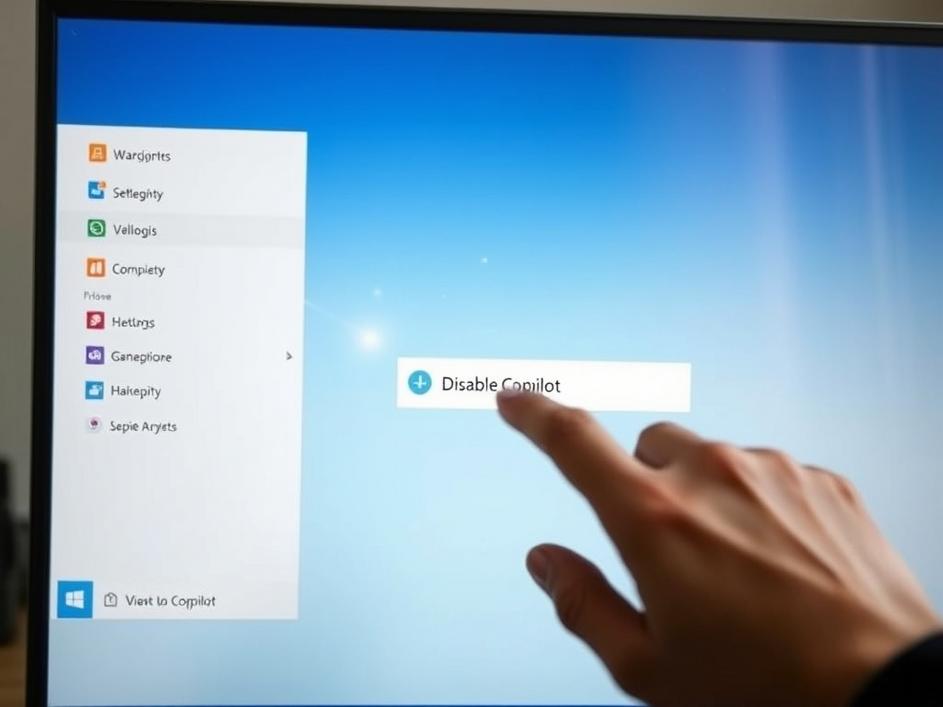
ToggleFor months users have complained that Microsoft’s Copilot feels like a permanent guest in their desktop. It shows up in the taskbar, pops suggestions in Office apps, and sometimes even starts talking when you don’t ask for it. The recent update finally gives us a switch to pull the plug. This is more than a tiny settings tweak; it is a clear signal that Microsoft heard the backlash. The ability to remove Copilot restores a sense of control that many felt was missing since the feature was first bundled with Windows 11 and Microsoft 365. In practice, the new option lives under Settings → Privacy → Copilot and lets you disable the service entirely, not just mute its voice. It’s a relief for people who want a clean, distraction‑free environment, especially those who use their PC for work that demands focus. The change also shows that Microsoft is willing to adjust its product strategy when the community pushes back.
When Copilot arrived, the promise was simple: an AI assistant that could write emails, draft presentations, and even suggest shortcuts while you work. In theory that sounds great, but the reality was a bit different. The assistant would appear on its own, often before the user had typed a single word. It would highlight text you hadn’t selected, or offer to rewrite a paragraph you were still editing. For many, that felt like a micromanaging coworker who never left the room. The constant pop‑ups also ate up system resources, slowing down older machines. Moreover, the default settings made it difficult to opt out, so users felt forced into a feature they never asked for. The new removal option finally gives us the freedom to decide whether we want that kind of help at all.
From a developer’s perspective, turning off Copilot isn’t just a UI checkbox; it involves disabling a set of background services, registry keys, and cloud sync points. Microsoft packaged the AI engine as a separate service called “CopilotService” that runs under the System account. The update adds a toggle that stops this service, removes its scheduled tasks, and clears the associated token from the user profile. It also disables the UI hooks that insert the Copilot icon into the taskbar and the Office ribbon. For power users who like to tinker, the change can be replicated with a few PowerShell commands, but the built‑in switch does the heavy lifting. The move shows that Microsoft has built a clean separation between the core OS and the AI layer, making future rollbacks or replacements easier.
If you spend most of your day in Visual Studio, Photoshop, or a terminal, you probably don’t need a chatbot reminding you to schedule meetings. The ability to turn Copilot off means you can keep your workflow lean and avoid unnecessary interruptions. It also frees up RAM and CPU cycles that were previously allocated to the AI model, which can be noticeable on laptops with 8 GB of memory. For developers who build automation scripts, the new setting can be toggled via Group Policy, allowing IT admins to enforce a “no‑Copilot” policy across an entire organization. On the flip side, those who have grown to rely on Copilot’s quick drafts might need to find alternative tools or bring back the feature manually when they need it. The flexibility to switch it on or off on demand is a win for anyone who likes to customize their environment.
From a corporate standpoint, the option to remove Copilot eases several compliance concerns. Some companies worry about AI‑generated content being stored in the cloud without proper oversight. By disabling the service, they can keep all document creation on‑premises and avoid accidental data leakage. The update also helps Microsoft address the criticism that it was pushing a paid AI add‑on without giving users a clear way to decline. Now, enterprises can decide whether to keep the feature as part of a premium subscription or to strip it out entirely to meet budget or policy constraints. This move could also improve adoption rates for Windows 11 in markets where users are wary of “always‑on” AI services. In short, giving the control back to the user aligns the product with traditional enterprise expectations.
The removal toggle is a reminder that AI features are still finding their place in everyday software. Microsoft is likely to keep refining how Copilot integrates with Windows and Office, perhaps offering a more modular approach where you can pick and choose specific capabilities instead of an all‑or‑nothing switch. For now, the ability to turn it off is a practical win for anyone who values a tidy desktop and predictable performance. It also sets a precedent: future AI assistants from any vendor will probably need a clear opt‑out path if they want to avoid the backlash we saw with Copilot. As users, we can enjoy the convenience of AI when we want it, and silence it when we don’t, without feeling forced into a one‑size‑fits‑all solution.
Source: Original Article


Comments are closed