

We are a digital agency helping businesses develop immersive, engaging, and user-focused web, app, and software solutions.
2310 Mira Vista Ave
Montrose, CA 91020

2500+ reviews based on client feedback
What's Included?
ToggleWhen I first saw a post titled “i need help up dating my bios” on the HP Support Community, I felt a familiar tug. Lots of people run into the same roadblock: they know the BIOS is important, but the process looks scary. The post is short, just a plea for help, but it opens a bigger conversation about how we keep our machines current. In this blog I’ll walk through what a BIOS update really means, why you might need it, and how to do it without turning your PC into a brick. It’s meant for anyone who’s comfortable opening Windows, but not an expert in firmware.
The BIOS, short for Basic Input/Output System, is the first software your computer runs when you press the power button. It checks the hardware, sets up basic services, and then hands control over to the operating system. Think of it as the backstage crew that makes sure the lights, sound, and props are ready before the show starts. On modern HP desktops and laptops, the BIOS lives in a small chip on the motherboard, and HP releases updates to fix bugs, add support for new hardware, or improve stability. It’s not an app you open daily, but it does affect how your whole system behaves.
There are a few common reasons people look to update their BIOS. First, a new processor or memory module may need a later BIOS version to work correctly. Second, a security flaw discovered in the firmware could leave your PC vulnerable, and HP often patches those quickly. Third, occasional odd glitches—random freezes, USB ports not waking, or strange boot messages—can sometimes be traced back to an outdated BIOS. While updating can bring benefits, it also carries risk. A power loss or a wrong file can leave the machine unbootable. That’s why many users turn to community forums for advice before they click “install.”
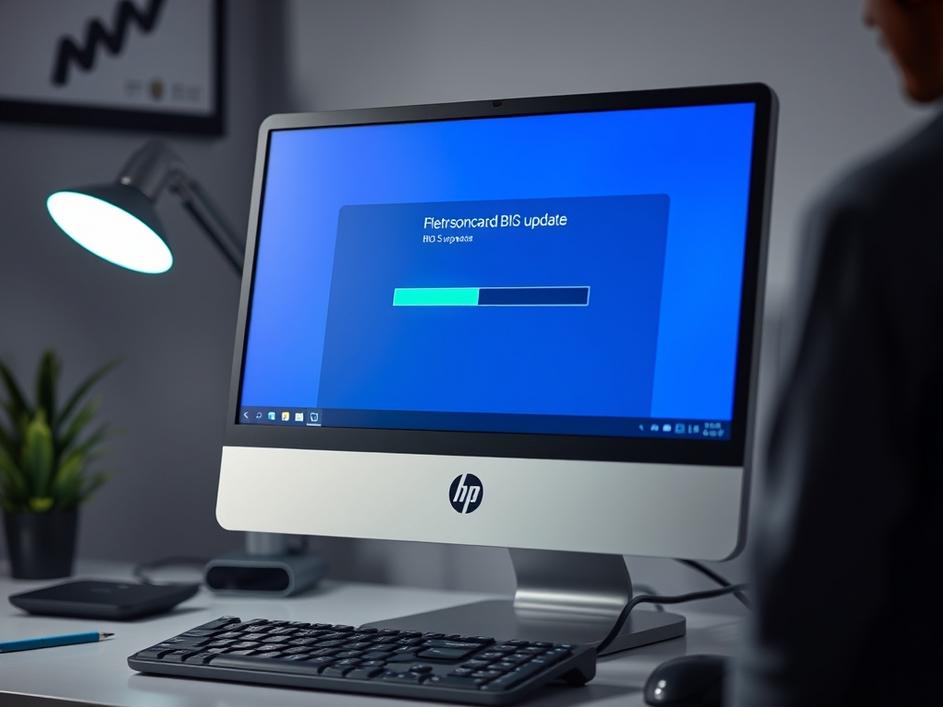
Here’s a straightforward path that works for most HP models. 1. Identify your exact model number—look on the front panel or in the System Information app. 2. Go to the official HP Support website, not a third‑party download site. 3. Enter the model, then choose the “BIOS” category. 4. Download the latest BIOS package; it usually comes as an executable. 5. Before you run it, make sure Windows is fully updated and that you have a stable power source. If you’re on a laptop, plug it in. 6. Run the installer and follow the prompts. The system will restart and flash the new firmware. 7. After the update, check the BIOS version on startup or in the HP Support Assistant. This method avoids the pitfalls of manual flashing tools and gives you a safety net if something goes wrong.
Even with careful steps, things can happen. A common error is the “BIOS update failed” message that appears during the reboot. If that shows up, do not power off the machine; let it try again for a few minutes. If it still won’t finish, you may need to use HP’s BIOS recovery feature. Most HP boards have a special key combination (often Esc + F2) that boots into a recovery mode where you can point to a USB drive with the BIOS file. Another frequent issue is the system not posting after the update. In that case, clearing the CMOS by removing the battery for a minute can reset the settings and let the board start again. The HP Support Community is full of people who have walked through these steps, and posting your exact error code can get you quick, targeted advice.
What I like about the HP forums is the mix of official guidance and real‑world experience. A support engineer can tell you the official procedure, but a fellow user can warn you about a quirky bug that only shows up on a certain batch of motherboards. In the original post, the asker simply wrote “i need help up dating my bios.” That brevity is common; many people feel embarrassed to admit they don’t know the basics. By sharing your own story—maybe a time you braved a BIOS flash and learned a lesson—you make the forum more welcoming. It also builds a knowledge base that future users can search, reducing the number of repeat questions.
Updating the BIOS doesn’t have to be a nightmare. Treat it like any other system maintenance: back up your data, follow the official steps, and keep the power steady. If you hit a snag, remember that the HP Support Community is there to help, and that many users have survived the same hiccups. A little patience and a clear plan can turn a confusing request like “i need help up dating my bios” into a smooth upgrade that extends the life of your PC. Stay curious, stay safe, and keep those firmware updates coming when they’re needed.
Source: Original Article



Comments are closed