

We are a digital agency helping businesses develop immersive, engaging, and user-focused web, app, and software solutions.
2310 Mira Vista Ave
Montrose, CA 91020

2500+ reviews based on client feedback
What's Included?
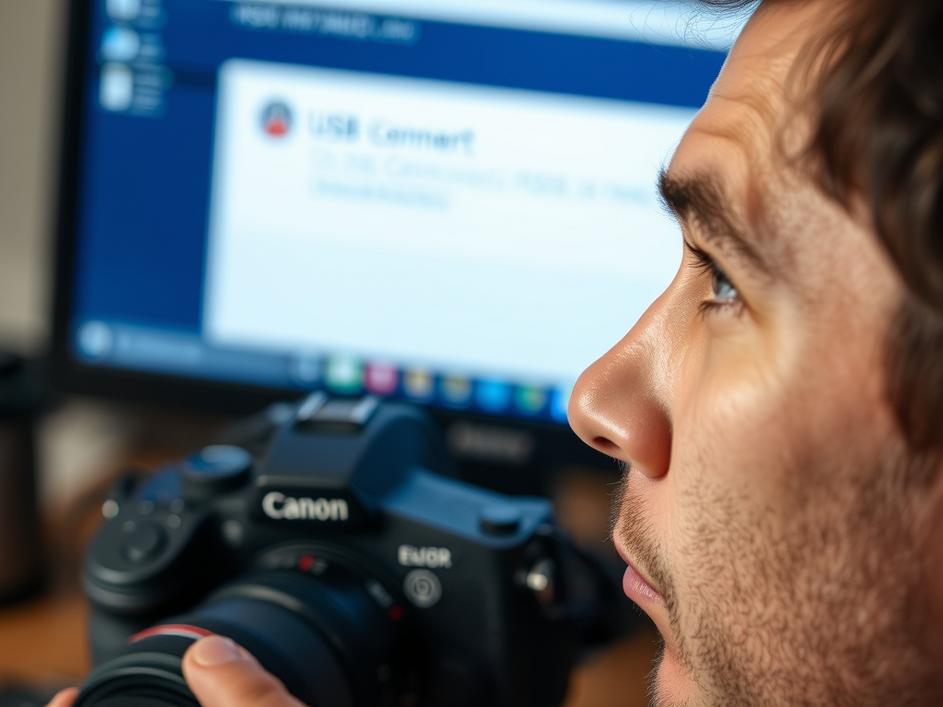
ToggleEver been ready to capture that perfect moment, only to be stopped by a dreaded error message? “Communication with the Camera via USB cannot be established.” It’s a common problem that can plague photographers and videographers, especially those who rely on tethered shooting or software like EOS Utility for camera control. It’s incredibly frustrating to have your gear fail you when you need it most. You’re all set to go, the light is perfect, and then… nothing. This problem can occur with various camera brands and models, but the solutions often share common ground.
One of the most frequent causes of this error is software interference. EOS Utility, or similar programs from other manufacturers, need exclusive access to the camera’s USB connection. If another application is trying to communicate with the camera simultaneously, a conflict arises, and the connection fails. This could be anything from image editing software to even background processes you might not be aware of. The solution is usually straightforward: close any programs that might be trying to access your camera before launching EOS Utility.
But what if you’ve closed all the obvious programs and the error persists? Sometimes, the culprit is a bit more hidden. Certain background applications or services can still interfere. Think about any recently installed software, especially anything related to imaging or USB devices. Temporarily disabling these can help diagnose the issue. It’s also worth checking your system tray for any running programs you might have forgotten about. And of course, restart your computer. This is the classic IT solution, but for a good reason. It forces everything to reset, clearing out potential conflicts and giving your camera a fresh start.
Software isn’t always to blame. The USB cable itself can be the problem. Try a different USB cable, preferably one known to be working correctly. Cables can degrade over time, especially with frequent use, and a damaged cable can cause intermittent or complete connection failures. Also, consider the USB port you’re using. Some ports, particularly on older computers, might not provide enough power for a stable connection. Try a different USB port, and if you’re using a USB hub, try connecting the camera directly to the computer instead. USB hubs can sometimes introduce bottlenecks or power limitations that disrupt the connection.
Outdated or corrupted drivers can also cause communication problems. Make sure you have the latest drivers installed for your camera and your USB ports. You can usually find the latest drivers on the camera manufacturer’s website. Updating your operating system can also resolve driver-related issues, as updates often include improved driver support. To check your device drivers in Windows, search for “Device Manager” in the Windows search bar. In the Device Manager, expand the “Cameras” or “Imaging Devices” section. Right-click on your camera and select “Update driver.”
If you’re specifically using EOS Utility, there are a few extra things to consider. Ensure that the correct camera model is selected within the software. Sometimes, the software might default to the wrong camera, causing a communication error. Also, try reinstalling EOS Utility. A fresh installation can resolve corrupted files or settings that might be causing the problem. Canon also releases updates to EOS Utility. Make sure you are using the latest version of the software.
Troubleshooting camera connection issues can be a process of elimination. Start with the simplest solutions, like closing conflicting software and trying a different USB cable. Then, move on to more advanced steps, like updating drivers and reinstalling software. Don’t be afraid to experiment and try different combinations of solutions. Search online forums and communities for other users who have experienced similar issues. You might find a specific solution that works for your camera model and setup. The key is to be patient and persistent, and eventually, you’ll get back to shooting those perfect moments.


Comments are closed