

We are a digital agency helping businesses develop immersive, engaging, and user-focused web, app, and software solutions.
2310 Mira Vista Ave
Montrose, CA 91020

2500+ reviews based on client feedback
What's Included?
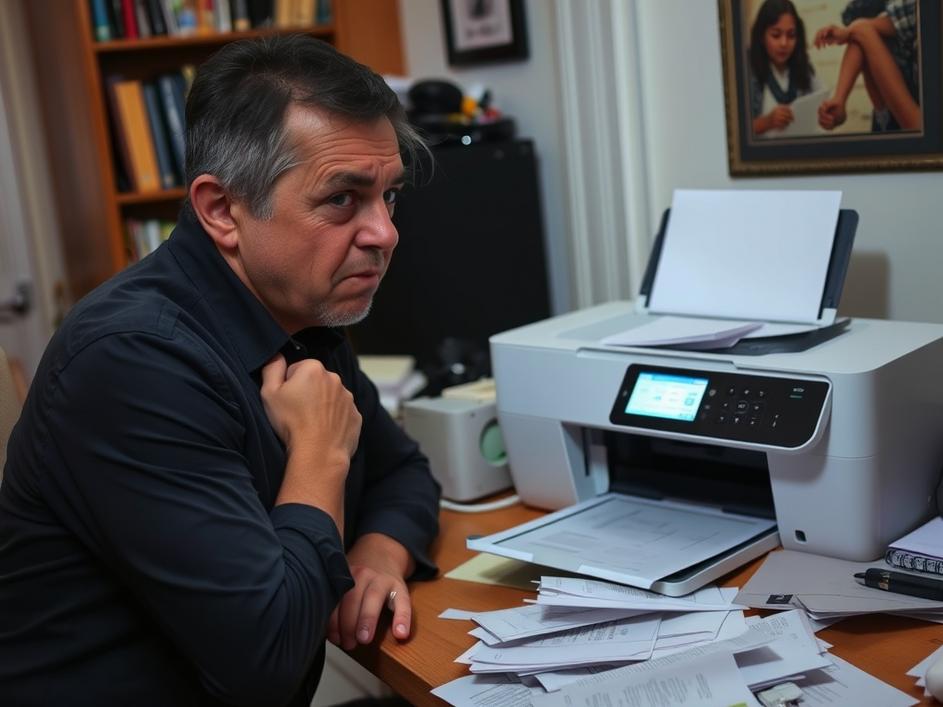
ToggleSo, your HP OfficeJet 8015e has decided to go on strike, refusing to print even a single page. You’re not alone. A quick search online reveals that this is a surprisingly common issue. It’s incredibly frustrating when your printer, a device you rely on for important documents, suddenly becomes unresponsive. Whether it’s for work, school, or personal use, a non-printing printer can throw a wrench into your plans. The good news is that, more often than not, the problem is something you can fix yourself without needing to call a technician or replace the entire unit.
Before diving into more complex solutions, let’s cover the basics. First, is the printer actually turned on? It sounds silly, but it’s easily overlooked. Check the power cable to make sure it’s securely plugged into both the printer and the wall outlet. Next, confirm that the printer is connected to your computer or network. If you’re using a USB connection, ensure the cable is properly connected to both devices. For wireless connections, double-check that the printer is connected to your Wi-Fi network and that your computer is on the same network. A weak or unstable Wi-Fi signal can also cause printing problems. Finally, make sure there isn’t a paper jam or any other obvious physical obstruction preventing the printer from working. Sometimes a small piece of paper can cause big problems.
If the physical connections seem fine, the problem might lie with the printer driver. Drivers are software programs that allow your computer to communicate with the printer. Outdated, corrupted, or incompatible drivers can prevent the printer from functioning correctly. To check and update your printer driver, go to your computer’s Device Manager (search for it in the Windows search bar). Find your printer in the list of devices, right-click on it, and select “Update driver.” You can choose to have Windows automatically search for updated drivers, or you can manually download the latest driver from the HP website. If you recently updated your operating system, it’s especially important to update your printer driver as well. Sometimes, uninstalling and then reinstalling the driver can resolve conflicts.
Sometimes, print jobs can get stuck in the print queue, preventing subsequent jobs from printing. This can happen if a print job is interrupted or encounters an error. To clear the print queue, search for “Services” in the Windows search bar and open the Services app. Scroll down to “Print Spooler,” right-click on it, and select “Restart.” This will clear the print queue and allow new print jobs to proceed. Alternatively, you can manually delete the files within the print spooler folder. To do this, stop the Print Spooler service as described above, then navigate to the folder C:\Windows\System32\spool\PRINTERS and delete all the files inside. Restart the Print Spooler service after deleting the files. Be careful while using this method and make sure that the service is stopped before deleting the files.
Printers, especially HP printers, can be finicky about ink cartridges. Make sure your printer has sufficient ink. Even if you have ink, the printer may not recognize third party or refilled cartridges. The printer might display an error message indicating that the cartridges are not genuine or are incompatible. While third-party cartridges can be cheaper, they sometimes cause problems. If you’re using a non-HP cartridge, consider trying an official HP cartridge to see if that resolves the issue. Also, try cleaning the ink cartridge contacts with a lint-free cloth. Sometimes, a small amount of dried ink can prevent the printer from recognizing the cartridge.
Wireless printing can be convenient, but it also introduces potential points of failure. If your printer is connected wirelessly, ensure that it has a strong and stable Wi-Fi connection. Try moving the printer closer to your router to improve the signal strength. Check your router’s settings to make sure that the printer is not being blocked or filtered. Sometimes, a simple router restart can resolve connectivity issues. Also, ensure that the printer’s firmware is up to date. Firmware updates often include improvements to wireless connectivity and stability. You can usually update the firmware through the printer’s control panel or through the HP Smart app.
If you’ve tried all the above steps and your printer is still not printing, you can try performing a printer reset. The specific steps for resetting your printer may vary depending on the model, so consult your printer’s manual or the HP website for instructions. A reset can sometimes clear lingering errors or configuration issues that are preventing the printer from working. Be aware that a reset will typically restore the printer to its factory default settings, so you may need to reconfigure your Wi-Fi connection and other settings afterwards.
While many printer problems can be resolved with a little troubleshooting, there are times when it’s best to seek professional help. If you’ve exhausted all the troubleshooting steps and your printer is still not working, or if you suspect a hardware problem, it’s time to contact HP support or a qualified printer technician. Attempting to repair a hardware issue yourself could potentially damage the printer further. Sometimes, the cost of a repair may be comparable to the cost of a new printer, so consider your options carefully.
Printer problems can be incredibly frustrating, but with a systematic approach, many issues can be resolved without needing to spend money on repairs or replacements. Start with the basics, check the connections, update your drivers, clear the print queue, and address any ink cartridge issues. And remember, a little patience can go a long way when dealing with these technological quirks.


Comments are closed