

We are a digital agency helping businesses develop immersive, engaging, and user-focused web, app, and software solutions.
2310 Mira Vista Ave
Montrose, CA 91020

2500+ reviews based on client feedback
What's Included?
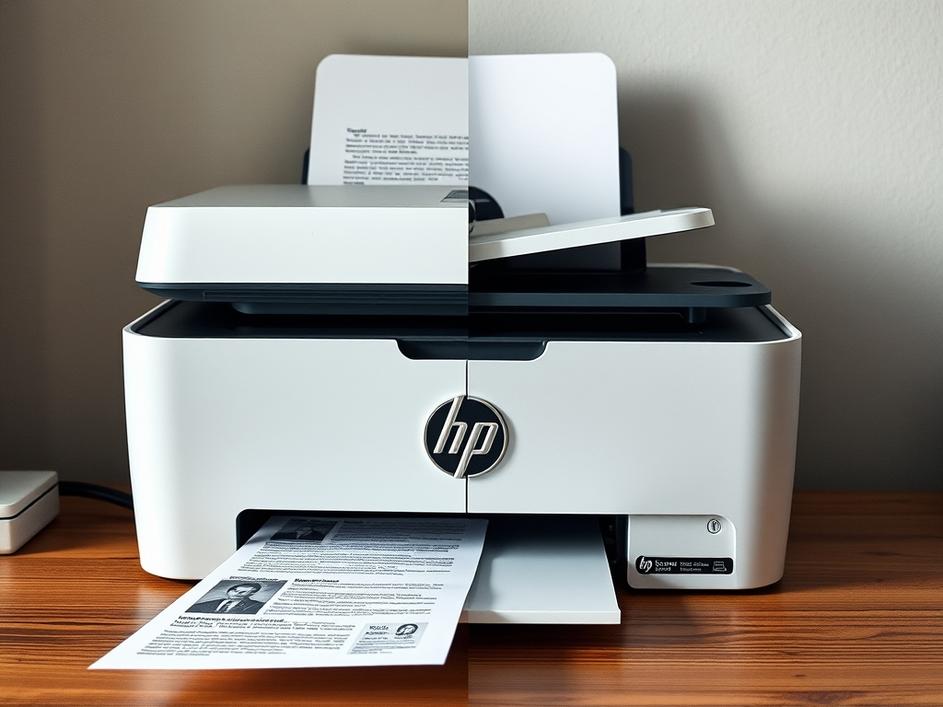
ToggleWe’ve all been there. You’re ready to print that important document, a concert ticket, or maybe just a fun coloring page for the kids, and your printer throws a wrench in the works. But what happens when your HP printer tells you it’s disconnected from Instant Ink, even though it’s clearly still tracking your page count and accessible online? It sounds like a frustrating paradox and resembles a problem a user described on the HP Support Community. This situation, reported on March 15, 2026, highlights a strange issue where the printer seems to exist in two states at once: connected enough to monitor usage, but disconnected for actual printing purposes. It’s enough to make anyone question their sanity, or at least their printer’s.
HP’s Instant Ink program is designed to make printing more convenient and affordable. The idea is simple: your printer monitors its ink levels and automatically orders replacements when you’re running low. It’s a subscription service, so you pay a monthly fee based on the number of pages you print, not the amount of ink you use. But like any system that relies on constant connectivity, things can go wrong. When the printer can’t communicate properly with HP’s servers, it can lead to error messages and, in this case, the dreaded “not connected” status, even when the printer is, in some ways, still connected.
So, what could be causing this bizarre behavior? Several factors might be at play. A glitch in the printer’s software could be misreporting its connection status. Problems with your home network, even if temporary, could interrupt communication with HP’s servers. And, let’s not forget the possibility of issues on HP’s end. Server outages or maintenance could prevent the printer from properly authenticating with the Instant Ink service. It’s like the printer is speaking two different languages, one for printing pages, and another for connecting to Instant Ink. The mixed signals cause confusion.
If you find yourself in this predicament, don’t despair! There are several troubleshooting steps you can try. First, restart your printer and your router. This simple step can often resolve temporary connectivity issues. Next, check your printer’s network settings to ensure it’s properly connected to your Wi-Fi network. You might also want to try updating your printer’s firmware to the latest version. Outdated firmware can sometimes cause compatibility problems. If none of those steps work, try removing and re-adding your printer to your HP account. And, of course, contacting HP support is always a good option. They may be able to diagnose the problem remotely or offer more specific solutions.
It’s also worth checking the HP Instant Ink website or app for any reported outages or service disruptions. If there’s a widespread issue, you might just have to wait it out. Also, be aware of security settings and firewalls. Sometimes, overly aggressive settings on your router or computer may block the printer from communicating correctly with HP’s services. Temporarily disabling these or adding the printer as a trusted device can help solve the issue.
While troubleshooting is essential, preventing future problems is even better. Make sure your printer has a stable and reliable internet connection. Avoid placing your printer in areas with weak Wi-Fi signals. Consider using a wired connection if possible. Regularly update your printer’s firmware and software. And keep an eye on your Instant Ink account to ensure everything is working as it should. Proactive maintenance can save you a lot of frustration in the long run. Also, consider the placement of your router and printer. Wireless interference from other devices, walls, and even certain types of building materials can weaken the signal. Experiment with different locations to find the sweet spot where connectivity is strongest and most reliable.
The HP Instant Ink situation, while frustrating, highlights the growing complexity of modern technology. As devices become more connected and reliant on cloud services, the potential for glitches and errors increases. While the promise of convenient and affordable printing is appealing, it comes with the challenge of managing connectivity and troubleshooting unexpected issues. The paradox of a printer simultaneously connected and disconnected underscores the need for robust and reliable systems. As technology continues to evolve, we can only hope that these systems become more intuitive and less prone to such confusing contradictions.
Ultimately, dealing with technology requires a dose of patience and a willingness to troubleshoot. When your HP printer throws a curveball, don’t panic. Take a deep breath, try the troubleshooting steps, and remember that you’re not alone. Many users encounter similar issues, and there’s usually a solution to be found. The key is to approach the problem systematically and not be afraid to seek help when needed. In the meantime, perhaps it’s a good reminder to appreciate the simple act of printing when it actually works.


Comments are closed