

We are a digital agency helping businesses develop immersive, engaging, and user-focused web, app, and software solutions.
2310 Mira Vista Ave
Montrose, CA 91020

2500+ reviews based on client feedback
What's Included?
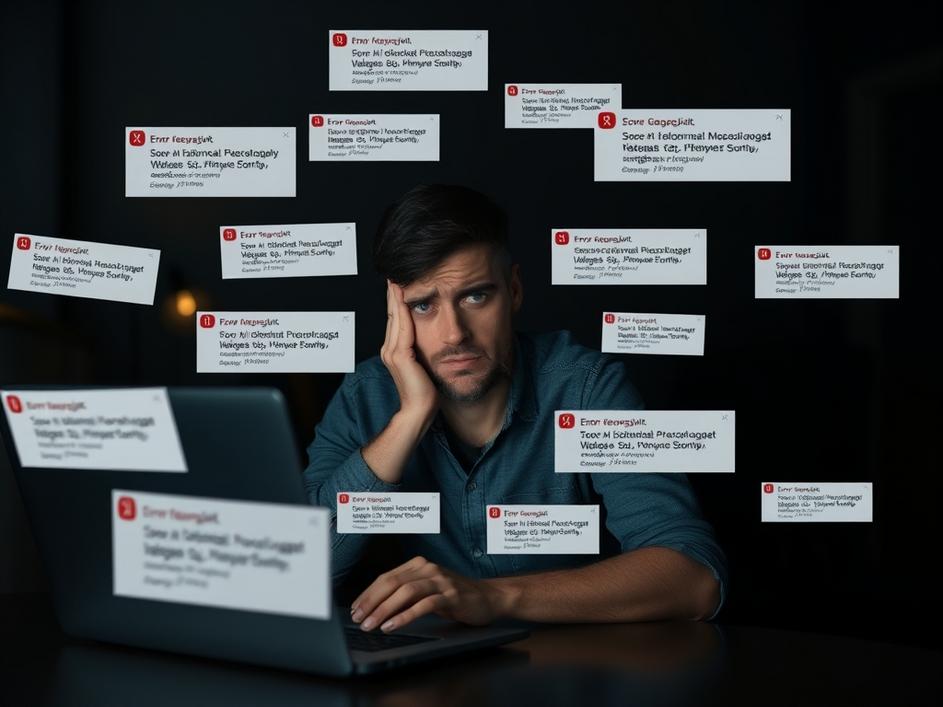
ToggleWe’ve all been there, right? That moment when your trusty laptop, the one you rely on for work, entertainment, and everything in between, suddenly starts acting up. Instead of being a helpful tool, it becomes a source of daily frustration. It throws error messages like confetti at a parade, constantly begging for attention. Recently, I stumbled across a post online about a user whose laptop was doing just that – sending SOS signals and nagging about a lack of space for Windows 11. It’s a common problem, and one that highlights the sometimes-adversarial relationship we have with our technology.
So, what does it mean when your laptop starts sending out these digital distress calls? Usually, the “SOS” isn’t a literal emergency signal, but rather a sign that something is seriously wrong. It could be a critical system error, a failing hard drive, or even a malware infection. The constant notifications about lacking space for Windows 11 are more straightforward: your computer simply doesn’t have enough free storage to accommodate the upgrade. This could be due to a full hard drive, bloated system files, or even hidden temporary files hogging space.
Microsoft, bless their hearts, really, *really* wants everyone to upgrade to the latest version of Windows. That’s why the upgrade notifications are so persistent. But just because the option is there doesn’t mean you *should* take it. If your laptop is already struggling with its current operating system, forcing a major upgrade like Windows 11 could make things even worse. It’s like trying to fit into a pair of jeans that are clearly too small – uncomfortable and ultimately damaging. The user in the original post seems aware of this, suggesting that sticking with the current setup is fine unless you’re engaging in risky online behavior.
One of the most annoying messages is a hard drive constantly complaining about being full. When you are already dealing with other struggles, this doesn’t help. So, how can you reclaim some of that precious digital real estate? First, run a disk cleanup utility. Windows has a built-in tool that can remove temporary files, system cache, and other unnecessary data. Next, uninstall any programs you no longer use. Those old games or applications might be taking up a surprising amount of space. Also, look for large files, such as videos or old backups, that can be moved to an external drive or cloud storage. Services like Google Drive, Dropbox, and OneDrive offer free storage tiers that can be a lifesaver.
The original post mentioned the dangers of downloading and executing files from “shadywebsite.scam.” This is crucial advice. Malware and viruses often disguise themselves as legitimate software or files, and downloading them from untrusted sources is like inviting a burglar into your home. Always download software from official websites or reputable app stores. Install a good antivirus program and keep it updated. Be wary of suspicious emails or links that ask you to download something or enter your personal information. A little caution can go a long way in preventing a major headache.
If simply freeing up space doesn’t solve the problem, it might be time to dig a little deeper. Check your hard drive for errors using the built-in disk checking tool. Defragmenting your hard drive (if it’s not an SSD) can also improve performance. If you’re comfortable with it, you can also try adjusting your virtual memory settings. However, be careful when making changes to system settings, as incorrect configurations can cause further problems. There are tons of YouTube videos about common problems. Don’t be afraid to go seek help.
Sometimes, despite your best efforts, your laptop’s problems might be beyond your ability to fix. If you’ve tried everything and your computer is still sending SOS signals and struggling with space, it might be time to consult a professional. A qualified technician can diagnose hardware problems, remove stubborn malware, and even help you upgrade your hard drive or operating system safely. Think of it like taking your car to a mechanic – sometimes, you just need an expert to get things running smoothly again.
Ultimately, dealing with a problematic laptop is a common experience in our increasingly digital world. The key is to stay calm, be patient, and take a systematic approach to troubleshooting. By understanding the potential causes of the problem, taking proactive steps to maintain your system, and knowing when to seek help, you can minimize the frustration and keep your technology working for you, not against you. And remember, sometimes the best solution is simply to breathe, back up your data, and consider a fresh start.



Comments are closed