

We are a digital agency helping businesses develop immersive, engaging, and user-focused web, app, and software solutions.
2310 Mira Vista Ave
Montrose, CA 91020

2500+ reviews based on client feedback
What's Included?
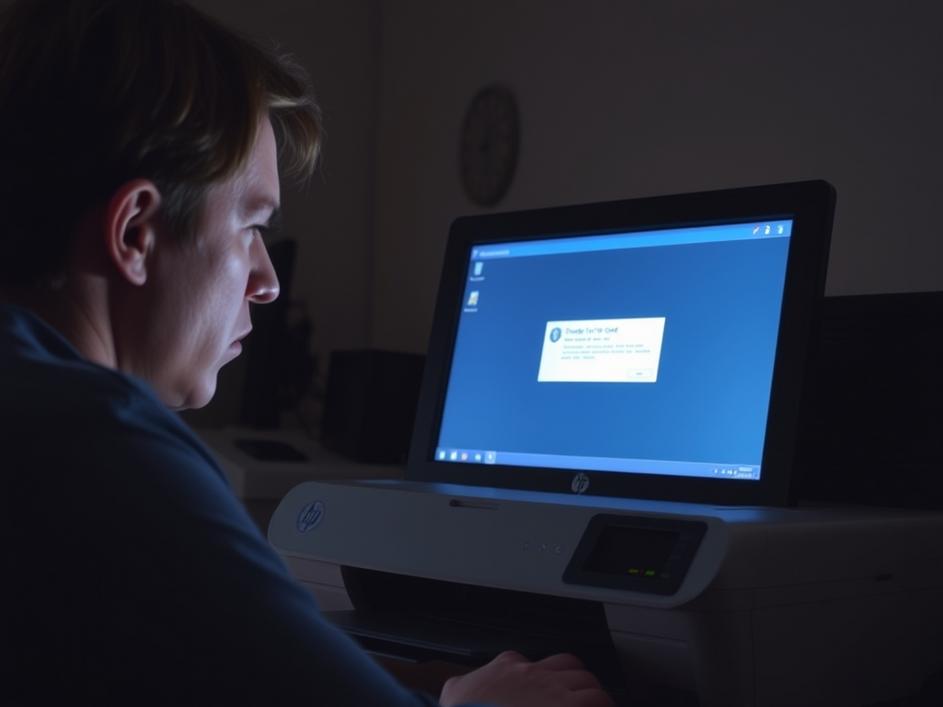
ToggleIt’s a common frustration: you’re ready to print that important document, hit ‘print,’ and then… nothing. You glance at your printer, and there it is, stubbornly offline. This seems to be the plight of one HP Deskjet 2800 user reaching out for help, their printer constantly disconnecting and refusing to come back online. Let’s explore some reasons this might be happening and, more importantly, how to fix it. No one wants to deal with printer problems, especially when you need something printed urgently. It can be incredibly frustrating and time-consuming. The good news is, there are usually solutions, and we’ll walk through some of the most common ones.
First, let’s consider the connection type. Is your HP Deskjet 2800 connected to your computer via USB or Wi-Fi? If it’s USB, make sure the cable is securely plugged into both the printer and your computer. Try a different USB port on your computer, as sometimes a port can malfunction. If it’s a Wi-Fi connection, the problem is potentially a little more complex. Wi-Fi interference, a weak signal, or incorrect network settings can all cause your printer to drop offline. And, of course, make sure your computer and printer are connected to the same network.
It sounds simple, but restarting your printer, your computer, and your router can often resolve the issue. Turn off your printer and unplug it from the power outlet. Wait about 30 seconds, then plug it back in and turn it on. Next, restart your computer. Finally, restart your Wi-Fi router. This process can clear temporary glitches and re-establish the connection between your devices. It’s like giving everything a fresh start, and you might be surprised how often this simple step works wonders. This ensures that all devices restart and reestablish connections correctly.
Outdated or corrupted printer drivers are a common culprit behind connectivity problems. To check your drivers, go to your computer’s Device Manager (search for it in the Start menu on Windows, or System Preferences on Mac). Look for your HP Deskjet 2800 printer. If there’s a yellow exclamation mark next to it, that indicates a problem with the driver. You can try updating the driver automatically through Device Manager, or you can download the latest driver from the HP support website. Make sure you select the correct operating system when downloading. Installing the newest driver ensures your computer and printer are communicating effectively.
Sometimes, your firewall settings can interfere with your printer’s connection. Your firewall might be blocking communication between your computer and the printer. Check your firewall settings (Windows Firewall or your third-party firewall software) and make sure that the HP Deskjet 2800 printer is allowed to communicate through the firewall. You might need to add an exception for the printer in your firewall settings. This can be a bit technical, but your firewall software should have instructions on how to add exceptions. Properly configured firewall rules are very important for printer operation and security. This ensures that the firewall isn’t preventing the printer from connecting to the network.
If your printer is connected via Wi-Fi, double-check that it’s connected to the correct network and that the Wi-Fi password is entered correctly. You can usually do this through the printer’s control panel or through the HP Smart app. Also, make sure that your Wi-Fi network is functioning correctly. Try connecting another device to your Wi-Fi network to see if it has internet access. If other devices are also having trouble connecting, the problem might be with your router or internet service provider. Ensuring the printer has a valid network connection is essential.
The HP Smart app can be a useful tool for managing your printer and troubleshooting problems. Download and install the HP Smart app on your computer or mobile device. The app can help you check the printer’s status, update drivers, and diagnose connectivity issues. It can also provide helpful troubleshooting tips specific to your printer model. The HP Smart app is designed to simplify printer management and resolve common issues quickly.
If you’ve tried all of the above steps and your HP Deskjet 2800 is still going offline, it might be time to contact HP support. They can provide more specific troubleshooting steps or determine if there’s a hardware problem with your printer. Before contacting support, gather as much information as possible about the problem, including any error messages you’re seeing and the steps you’ve already tried. This will help them diagnose the issue more quickly. Reaching out to HP support can provide specialized assistance for hardware or software problems.
Dealing with an offline printer can be a real headache, but with a systematic approach, you can usually get it back online. Start with the simple steps like restarting your devices and checking the connections. Then, move on to more advanced troubleshooting steps like updating drivers and checking firewall settings. And if all else fails, don’t hesitate to contact HP support for assistance. By following these steps, you can tame the offline printer beast and get back to printing those important documents.



Comments are closed